CamLAN Manual
Part 5: Adjust Camera
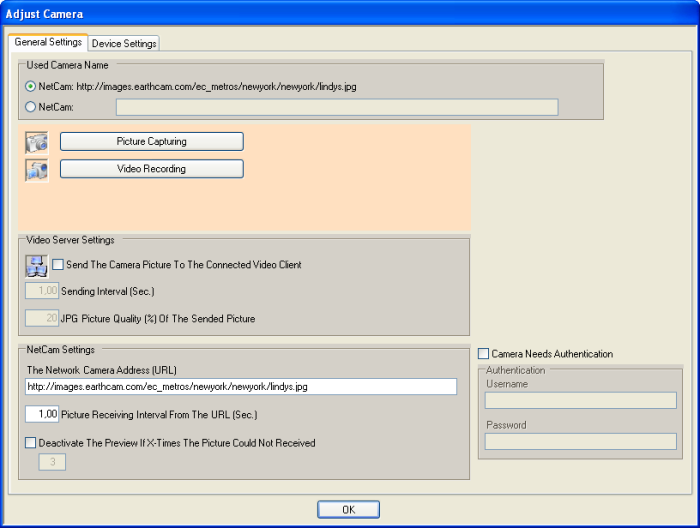
Used Camera Name - you could select to use the default name for the camera,
or insert a user defined camera name. The default name for
NetCams is the camera picture URL and for WebCams the camera
name which comes from the device driver.
Picture Capturing - opens
the picture capture settings dialog
Video Recording - opens the video
recording settings dialog
Video Server
Settings
Send The Camera Picture To The Connected Video Client -
check if the camera should work as RemoteCam. If checked the
program sends the camera picture in intervals to the connected
video clients.
Sending Interval - interval in which the program sends the camera picture
JPG
Picture Quality - internal
the camera picture is send in JPG picture format. Select the
picture quality to adjust the picture size to find a compromise
between a low bandwidth and a good picture visualizing.
NetCam
Settings (the following settings are only
relevant for NetCams)
The NetCam Picture Address (URL) -
insert the direct link to the camera picture. You have to
insert the URL which points direct to the camera picture not
only to the camera webserver. Insert http://192.168.1.110/picture.jpg
instead of only http://192.168.1.110 for your netcam.
Picture
Receiving Interval From The URL - interval in which the program tries to receive a
picture from the NetCam. Don't select an interval which is
smaller than the camera is able to generate a new picture,
because in this case you would receive the same picture several
times again and needless reduce the network bandwidth.
Deactivate
The Preview If X-Times The Picture Could Not Received - if selected the preview is stopped if x-times a picture
could not received from the selected URL. This could happen
if the camera is temporary offline.
Camera Needs Authentication - select if the camera webserver needs an authentication
Username - username for the authentication
Password - password for the authentication

Video Settings
Video Record Codec - all
in the system available video record codecs are listed. The
current used codec is shown. If you want to have more codecs
available, you have to install them into your Windows OS!
If you change the selection, the program tests, if the codec
could be used for recording. This depends on the video device,
audio device and further codecs. Not all codecs works together
which each other!
Video Codec - if the selected codec supports a dialog for adjusting
settings, the button becomes available. There are some codecs
available, which notifys that they support a dialog, but that
is not the case. If this is the case, nothing happens at button
press.
Video Device Settings -
opens the appropriate device driver dialog if available
Video Preview Settings - opens the appropriate device driver dialog if available
Video Record Settings - opens the appropriate device driver dialog if available
Video Source (only TV Tuner) - all available video input sources are listed
and selectable. In general these are Tuner, Composite, S-Video.
Audio Settings
Audio Record Device - all
in the system available audio record devices are listed. The
current used device is shown.
In case of receiving a MPEG4 stream, this option is disabled.
If the MPEG4 stream contains audio you get the audio automatically.
Audio Record Codec - all
in the system available audio record codecs are listed. The
current used codec is shown. If you want to have more codecs
available, you have to install them into your Windows OS!
If you change the selection, the program tests, if the codec
could be used for recording. This depends on the video device,
audio device and further codecs. Not all codecs works together
which each other!
Audio Codec - if the selected codec supports a dialog for adjusting
settings, the button becomes available. There are some codecs
available, which notifys that they support a dialog, but that
is not the case. If this is the case, nothing happens at button
press.
Audio Device Settings -
opens the appropriate device driver dialog if available
Audio Preview Settings - opens the appropriate device driver dialog if available
Audio Record Settings - opens the appropriate device driver dialog if available
Channels - the audio channels (mono, stereo)
SampleSize - the audio sample sizes (8bit, 16bit)
SampleRate - the audio samplerates (11025Hz, 22050Hz, 44100Hz)
TV
Tuner Settings (only
TV Tuner)
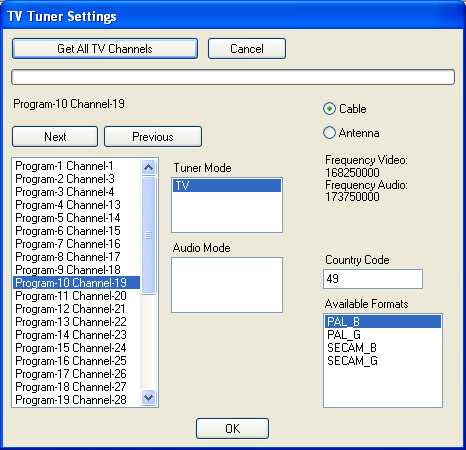
TV Tuner Settings - opens the TV tuner dialog to adjust the tuner settings
 It's
important to run this function, otherwise there would be no
programs available which are selectable from the video window
buttons. The found programs are saved in the file PROGRAMS.DAT! It's
important to run this function, otherwise there would be no
programs available which are selectable from the video window
buttons. The found programs are saved in the file PROGRAMS.DAT!
Show Device
Infos - shows infos
about the selected devices and codecs
 Devices
and Codecs Devices
and Codecs
Changes in the property
pages of the devices are often not saved by the video device
driver. The exceptions are the properties of the video and
audio record codecs. In most cases the settings are saved
by the driver.
Changes made in the property
pages will be reflected immediately in CamLAN. But the reverse
is not always true, so internal changes may not be reflected
in the associated property page! After loading of the saved
settings the video framesize is internal set and reflected
in the property page, the frames per second (fps) value is
internal set, but not reflected in the property page, there
is a default value of the driver shown and the compression
type (RGB24,RGB32,YVU9,etc.) could not be restored!
Furthermore some combinations of video record codecs and video
compression types are not working together! So, if you select
a video record codec (everything different to "none")
then let the video compression value to be the driver default
(in most cases RGB24)!
Part
6 >> |