|
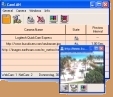
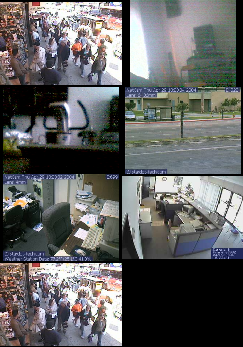
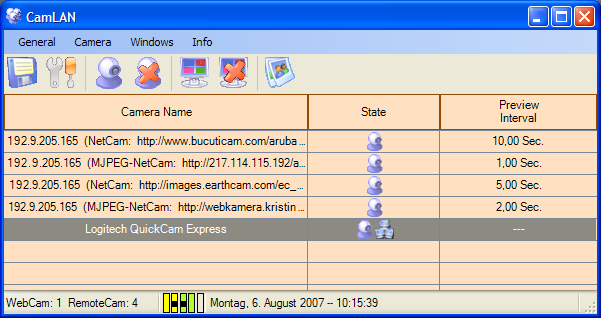
Main Window
You
see with one look which cameras are available!
Samples
for the Picture Capturing
Video
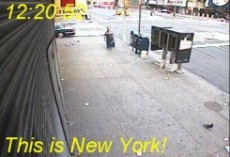
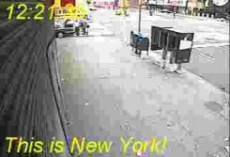
Recording with Timestamp
It is possible to print a timestamp into all your recorded
videos.
The text ouput could be the current time, date a self defined text and additional
you could print your logo into the video!

Video
Window
Here you see the current video source. You can select always
on top for this window to see at every moment what's happening.
For each camera you can select if you want to see the video window
or not, no matter if the motion detector or scheduler is running
or not.
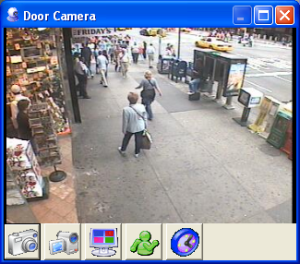 ... ... 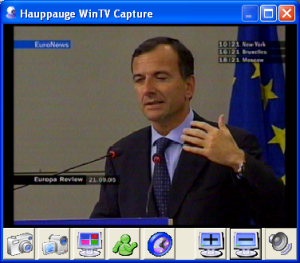
The video windows can appear with a caption or without, with a
buttonbar or without, topmost or not. From the buttonbar you could
direct start the main functions. The buttonbar from a TV Tuner
window owns three additional buttons to select the programs and
mute the audio.
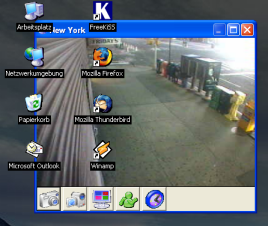
ActiveDesktop
If you have the ActiveDesktop enabled, you can place the video
window into the ActiveDesktop.Then the video window lays behind
all program windows and behind the desktop icons. You can stretch
the video window so that the video window takes the place of your
desktop image!
 ... ... 
Combine
the Video Windows
You can combine the video windows on your desktop in different
ways, to see always several videos at one moment.
The video windows can fill the screen like the monitor of a doorman
or they can appear where you want.
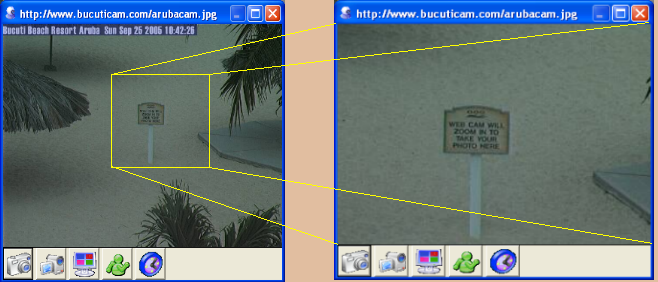
Zoom
into the Video Window
With the middle mousebutton you could zoom into the video window.
Press the middle mousebutton (the cursor changes into a cross),
move the mouse and release the button.
Integrated
Webserver
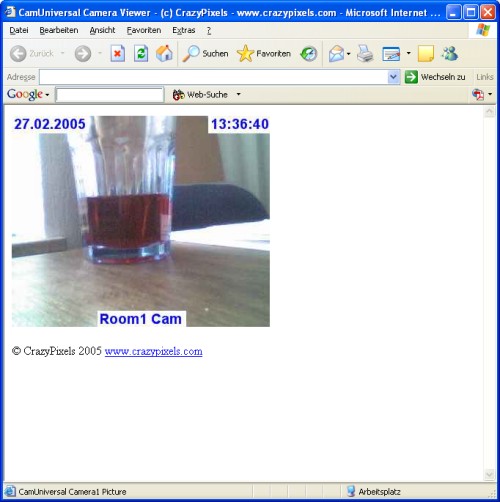
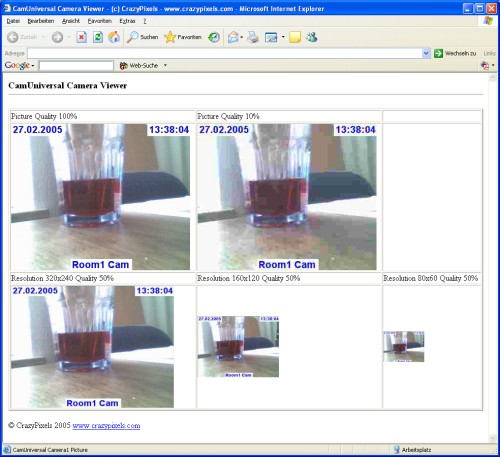
Use the integrated Webserver to view all camera videos in your
Internet browser and control the cameras from remote.
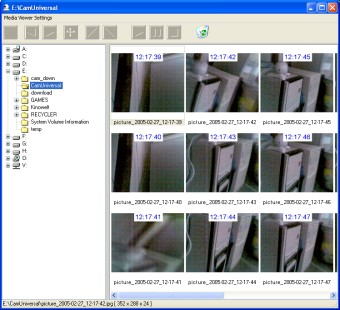
Media
Viewer
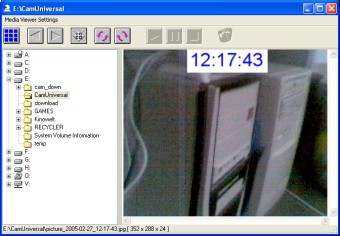
With the Media Viewer you could view all captured pictures and
recorded videos.
|