CamPermanent Manual
Part 8: CamPlayer
CamPlayer

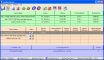
Buttons / Icons (from
left to right)
Button Play - starts the video playing
Button Pause - pauses the video playing
Button Stop - stops the video playing
Green Light - blinks while video playing
is running
Red Light - blinks if CamPermanent is
recording into this video
Capture Button - captures and saves the
current video picture as JPG
Playback Speed - adjust the playback speed
(the playback speed is limited by the CPU and harddrive
speed)
Loop Playback - loops the playback
Program Menu
File - Open - opens a new video (*.m24). You can also drag
and drop a video into the CamPlayer!
File - Exit - closes the application
Player - Play All Videos - plays all videos
Player - Pause All Videos - pauses the video playing
for all videos
Player - Stop All Videos - stops the video
playing for all videos
Windows - Close Active - closes the video window with the
focus
Windows - Close All - closes all video
windows
Windows - Cascade - cascades the video
windows
Windows - Tile Horizontally - aligns the
video windows horizontally
Windows - Tile Vertically - aligns the
video windows vertically
Info - Online Manual - opens a browser
with the manual
Conext Menu
(right click into the video window)
Set Size 50%/100%/200% Of Original Size - resizes the video
window
Correct The Aspect Ratio - resizes the video window so that
the aspect ratio is correct. This is sometimes necessary after a manual resize
of the window.
AVI Creator - Converts the *.m24 video
file into an AVI video! The filename and video codec are
selectable.
Part
9 >> |