|
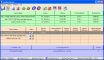
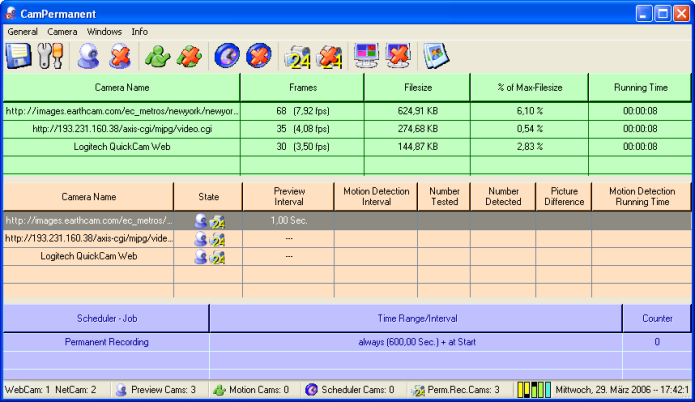
Main Window
You see with one look, what cameras
are available, in which mode they are running,
the current permanent recording, motion detector and scheduler
values.
Permanent Recording
In the permanent recording listview
there are all cameras shown which are running the permanent
recording.
Informations about the written frames, the written filesize,
the % amount of the maximum filesize
and the recording running time are displayed.
If no camera is running the permanent recording, this listview
could be hidden to make the dialog more clear.

Motion Detector
In the motion detector listview all
available cameras are shown.
If the motion detector is running the listview columns are
filled with informations.

Scheduler
In the scheduler listview there are
shown the scheduler functions, the time range and intervals
from the selected camera. If the scheduler ist active the
counter shows how often the functions were executed.

Samples for the Picture Capturing
Permanent Video Recording
These videos are created in
a proprietary fileformat. They contains no audio and no standard
video codecs.
These videos have a user defined filesize (resp. video length).
If the adjusted filesize is reached, the video is overwritten
from the beginning. So each video contains always the last
24 hours, last 3 days, etc. (depends on the settings)!
These videos could be converted into AVI if needed!
For viewing of the permanent videos there is the CamPlayer included.
With the CamPlayer you can view parallel how many videos you
like.
These videos could be already completed or still in record
progress!

The CamPlayer viewing only one video!

Standard Video Recording
These recordings creates videos
in the AVI fileformat. You can use the video codecs and audio
devices/codecs which are
available on your system. It is also possible to print a timestamp
into these videos.
The timestamp could be the current time, date a self defined
text and additional you could print your logo into the video!

Video Window
Here you see the current video
source. You can select always on top for this window to see
at every moment what's happening.
For each camera you can select if you want to see the video
window or not, no matter if the permanent recording,
the motion detector or the scheduler
is running or not.
 ... ... 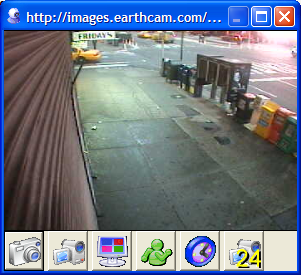
The video windows can appear with a
caption or without, with a buttonbar or without, topmost or
not.
From the buttonbar you can direct start the main functions.
The buttonbar from a TV Tuner window owns three additional
buttons to select the programs and mute the audio.
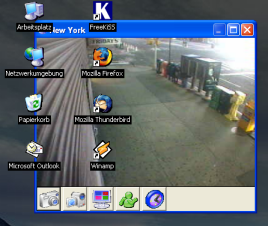
ActiveDesktop
If you have the ActiveDesktop enabled, you can place the video
window into the ActiveDesktop.Then the video window lays behind
all program windows and behind the desktop icons. You can
stretch the video window so that the video window takes the
place of your desktop image!
 ... ... 
Picture Difference Window
Display the current picture difference
within the video window while motion detection is running.
So you see in realtime
which parts of the video are changing. This could be important
for the adjustment of the motion detection settings.

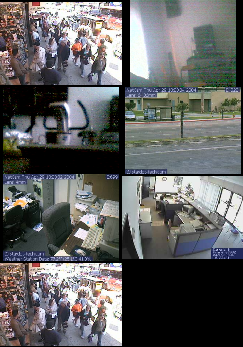
Combine the Video Windows
You can combine the video windows
on your desktop in different ways, to see always several
videos at one moment.
The video windows can fill the screen like the monitor of
a doorman or they can appear where you want.
Zoom into the Video Window
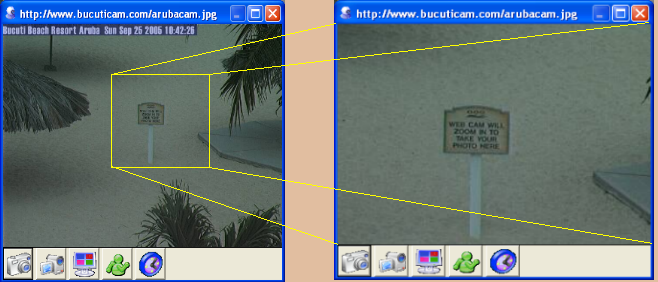
With the middle mousebutton you could
zoom into the video window.
Press the middle mousebutton (the cursor changes into a cross),
move the mouse and release the button.
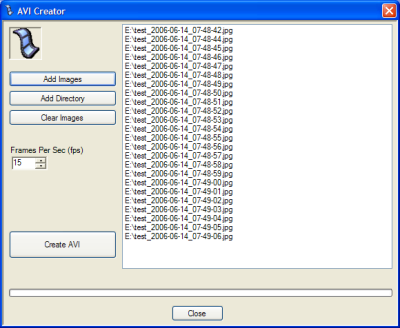
AVI Video Creator
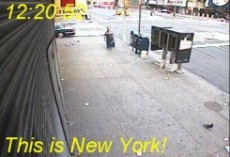
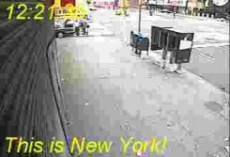
Use the integrated AVI Creator to
generate a video from single images.
For example you can capture single images from your camera
every 30sec. through the whole day
and create a video from all images showing the day in fast
motion.
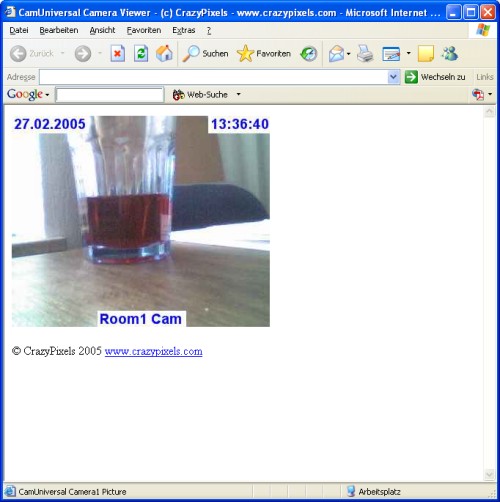
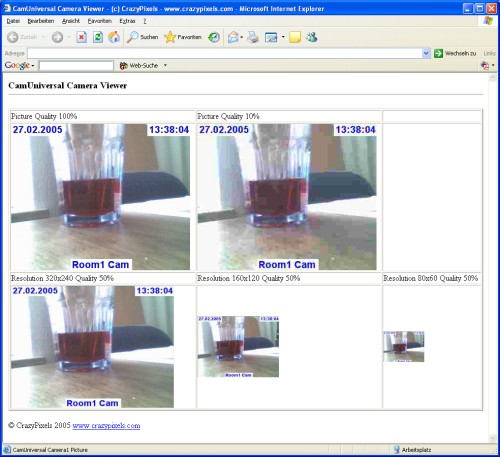
Integrated Webserver
Use the integrated Webserver to view
all camera videos in your Internet browser and control the
cameras from remote.
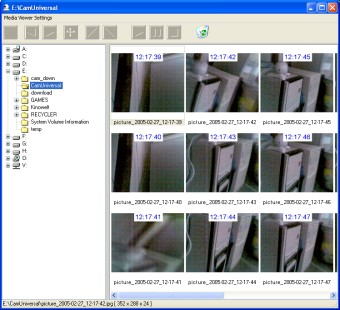
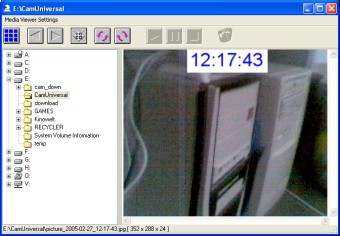
Media Viewer
With the integrated Media Viewer you
can view all captured pictures and AVI videos.
The permanent recorded videos are viewable with the CamPlayer.
|