CamPermanent Manual
Part 4: New Camera
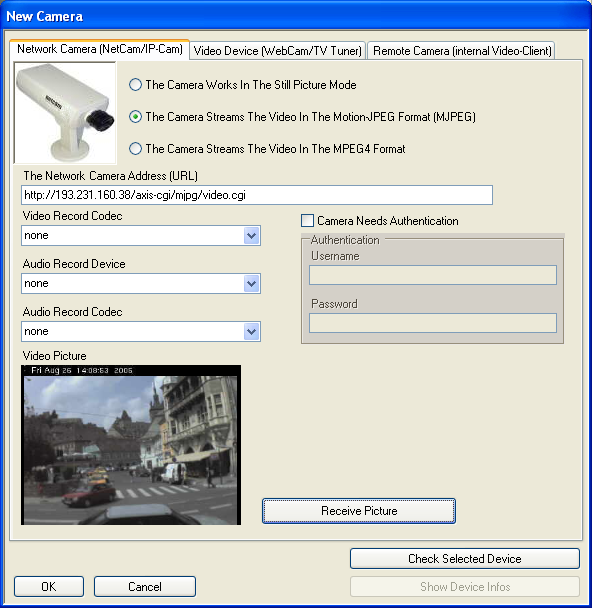
See in the First Steps section how to add a netcam!
The Camera Works In The Still Picture Mode - select
this option, if the camera supports still pictures (JPG format).
The Camera Streams The Video In The Motion-JPEG Format -
select this option, if the camera streams the video in the motion-JPEG
(MJPEG) format.
The Camera Streams The Video In The MPEG4 Format -
select this option, if the camera streams the video in
the MPEG4 format.
 View
the camera manual to find out the supported video formats.
Be sure to make the correct selection for the video format! View
the camera manual to find out the supported video formats.
Be sure to make the correct selection for the video format!
The Network Camera Address - insert the direct
link to the camera picture or motion-JPEG- or MPEG4-stream.
You have to insert the URL which points direct to the camera
picture (or motion-JPEG-/MPEG4-stream) not only to the camera webserver.
(For samples have a look at our Support
page or into your camera manual!)
Video Record Codec - all available video record codecs are
listed. Select the one which should be used.
Audio Record Device - all available audio record devices
are listed. Select the one which should be used.
In case of receiving a MPEG4 stream, this option is disabled. If the
MPEG4 stream contains audio you get the audio automatically.
Audio Record Codec - all available audio record codecs are
listed. Select the one which should be used.
 The
codecs and devices are only used for a video recording. The video
preview and the capturing of pictures are not affected by these
codecs! The
codecs and devices are only used for a video recording. The video
preview and the capturing of pictures are not affected by these
codecs!
Camera Needs Authentication - select if the camera
webserver needs an authentication
Username - username for the authentication
Password - password for the authentication
Receive Picture - press this button to receive
a picture from the inserted link. The program tries to
receive a picture from the inserted link, this could
take several seconds.
Check Selected Device - it's tested, if the DirectShow Rendergraph
could be created with the selected devices and codecs.
This is necessary for a video recording. If the DirectShow
Rendergraph could not be created, the devices are not
working together or already in use. In this case, try
to select different combinations!
Show Device Infos - shows infos about the selected devices
and codecs
What
is DirectShow ?
Introduction to DirectShow
Microsoft® DirectShow® is an architecture for streaming media on
the Microsoft Windows® platform. DirectShow provides for high-quality
capture and playback of multimedia streams. It supports a wide variety of
formats, including Advanced Systems Format (ASF), Motion Picture Experts
Group (MPEG), Audio-Video Interleaved (AVI), MPEG Audio Layer-3 (MP3), and
WAV sound files. It supports capture using Windows Driver Model (WDM) devices
or older Video for Windows devices. DirectShow is integrated with other DirectX
technologies. It automatically detects and uses video and audio acceleration
hardware when available, but also supports systems without acceleration hardware.
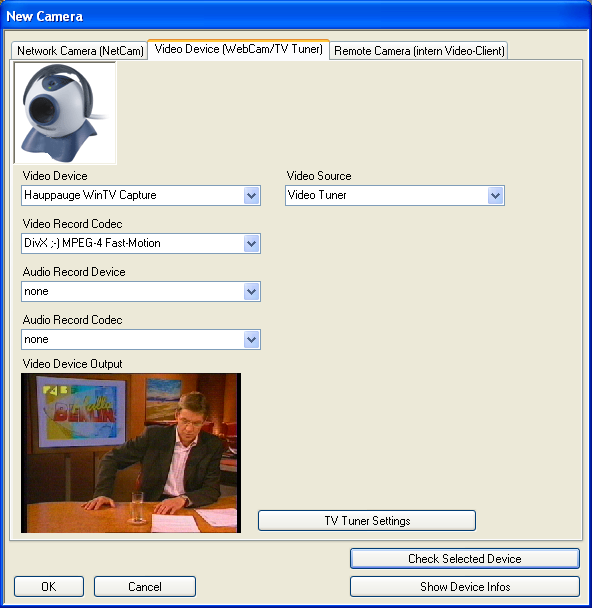
See in the First Steps section how to add a webcam!
Video Device - all available video devices are listed.
Select the one which should be used.
Video Record Codec - all available video record codecs
are listed. Select the one which should be used.
Audio Record Device - all available audio record
devices are listed. Select the one which should be used.
Audio Record Codec - all available audio record
codecs are listed. Select the one which should be used.
The
codecs are only used for a video recording. The video preview and
the capturing of pictures are not affected by these codecs!
Video Source - if the video device supports several
video sources ( inputs like Tuner, Composite, AUX etc.
), the source could be selected here
If the selected video device is a TV Tuner:
TV Tuner Settings - opens the TV tuner dialog to adjust the tuner settings
It's
important to run this function, otherwise there would be no programs available
which are selectable from the video window buttons. The found programs are
saved in the file PROGRAMS.DAT!
Check Selected Device - it's tested, if the DirectShow Rendergraph
could be created with the selected devices and codecs.
This is necessary for a video recording, picture capturing
and video preview. If the DirectShow Rendergraph could
not be created, the devices are not working together
or already in use. In this case, try to select different
combinations!
Show Device Infos - shows infos about the selected
devices and codecs
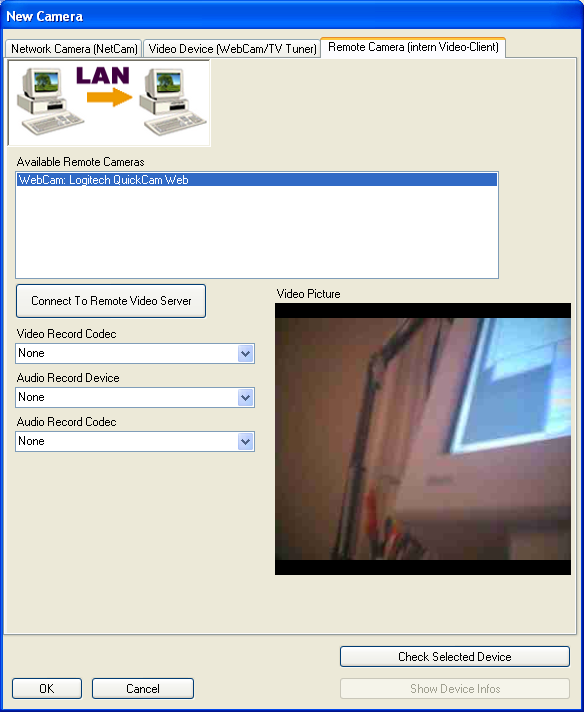
Before
you could use the remote cameras, the following steps must be executed.
1 - The network server must be running on the remote PC. Goto the program
settings (Video Network) and start the network server.
2 - On the remote PC there must be cameras available, which are sending
their picture.
3 - The network client from this PC must be running. Goto the program
settings (Video Network) and start the network client.
It's
important to know, that the camera name is received and used to
indentify a remote camera. If there are two remote cameras available
which are sending their picture and using the same name, they could
not be differentiate. In this case, please give the cameras different
usernames!
Available Remote Cameras - all found remote cameras
are listed. Select the one you want to use.
Connect To Remote Video Server - tries to connect to a remote
CamPermanent video server
Video Record Codec - all available video record codecs
are listed. Select the one which should be used.
Audio Record Device - all available audio record devices
are listed. Select the one which should be used.
Audio Record Codec - all available audio record
codecs are listed. Select the one which should be used.
The
codecs and devices are only used for a video recording. The video
preview and the capturing of pictures are not affected by these
codecs!
Check Selected Device - it's tested, if the DirectShow Rendergraph
could be created with the selected devices and codecs.
This is necessary for a video recording. If the DirectShow
Rendergraph could not be created, the devices are not
working together or already in use. In this case, try
to select different combinations!
Show Device Infos - shows infos about the selected
devices and codecs
Part
5 >> |