CamPermanent Manual
Part 6: Menus / Mouse

General / Load Cameras ... (CTRL+L) - loads a camera set from a *.cam file. The set contains the cameras with all related settings.
General / Save Cameras (CTRL+C) - saves the existing cameras into the current *.cam file
General / Save Cameras As ... (CTRL+A) - saves the existing cameras into a new *.cam file
General / Delete All Cameras - removes the existing cameras from the program (the *.cam file is not deleted or changed!)
General / Settings ...- opens the program settings dialog
General / Save Settings (CTRL+S)- saves the program settings (SETTINGS.DAT)
General / Exit - closes the application
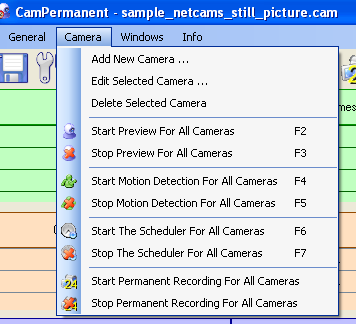
Camera / Add New Camera - opens the new camera dialog to insert a new camera
Camera / Edit Selected Camera - opens the adjust camera dialog to edit the settings of the
selected camera
Camera / Delete Selected Camera
- deletes the selected camera
Camera / Start Preview For All Cameras
(F2)- starts the preview
for all cameras
Camera
/ Stop Preview For All Cameras (F3)- stops the preview for all cameras
Camera
/ Start The Motion Detection For All Cameras (F4)- starts the motion detector for all cameras. The needed motion
detector settings must be adjusted before.
Camera / Stop The Motion
Detection For All Cameras (F5)- stops the motion detector for all cameras
Camera / Start The Scheduler
For All Cameras (F6)- starts
the scheduler for all cameras.
You have to create at least one job before.
Camera
/ Stop The Scheduler For All Cameras (F7)- stop the scheduler for all cameras
Camera
/ Start Permanent Recording For All Cameras- starts the permanent recording for all cameras
Camera
/ Stop Permanent Recording For All Cameras- stops the permanent recording for all cameras

Windows
/ Collect All Video Windows (F8)- combines all camera video windows in the collection window
Windows
/ Separate All Video Windows (F9)- closes
the collection window and separates the video windows
Windows
/ Show All Video Windows (CTRL+V)- shows all camera video windows
Windows
/ Hide All Video Windows (CTRL+H)- hides
all camera video windows. The camera functions remains active.
Windows
/ Show All Video Windows At (0,0) - show all video windows at the upper left corner of the screen.
This could be necessary if the program is started with previous
settings on a different PC with a different resolution or
if the primary monitor is changed on a multi monitor system.
Windows
/ Set All Video Windows At Topmost - set all video windows at a topmost window in front of all
other windows
Windows
/ Open The Media Viewer - opens the media viewer
Windows
/ AVI Creator ... - opens the AVI creator dialog

Info
/ Online Manual ... (F1) - opens
the standard Internet browser with the manual webpage
Info
/ Goto The Webpage ... - opens
the standard Internet browser with the CrazyPixels main webpage
Info
/ Forum ... - opens
the standard Internet browser with the CrazyPixels Forum webpage
Info
/ Register ... - opens
the registration dialog. With this dialog you create your keyinfo file which is needed to get your key.
Info / System
Infos ...- opens
a dialog which displays informations about the program and
your system
Info
/ About ...- opens the about
dialog
Context Menu -
Application
A right mousebutton click
into a camera row opens the camera context menu.
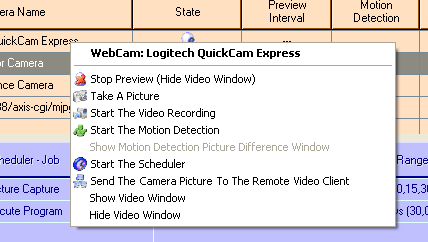
Start/Stop Preview - starts/stops
the preview of the camera (only if there is no motion detector or scheduler
running). The video window of the camera gets hidden at stopping and is
shown at starting. You could also stop the preview by closing the video
window with the close button.
Take A Picture - takes a picture
Start/Stop The Video Recording - starts/stops the
video recording
Start/Stop The Motion Detection - starts/stops the motion
detector of the camera
Show Motion Detection Picture Difference Window - shows the Difference
Window. In this window you see the current camera picture with all pixels coloured
which are different between the current picture and the comparing picture.
To reduce or increase the amount of different pixels (% area difference) the
values for the pixel difference (red,green,blue) must be adjusted. The pixel
difference values and the area which is tested for motion are adjustable under
the motion detector settings dialog.
Start/Stop The Scheduler - starts/stops the scheduler
of the camera
Send (Send Not) The Camera Picture To The Remote Video Client - enables/disables
the camera picture sending to a connected video client
Show Video Window - shows the video window.
Hide Video Window - hides the video window. With
this function you hide the video window, all running functions
are still working. It is not the same, as if you close the video
window from the close button!
Context Menu -
Video Window
A right mousebutton click
into the video window opens the video window context menu.
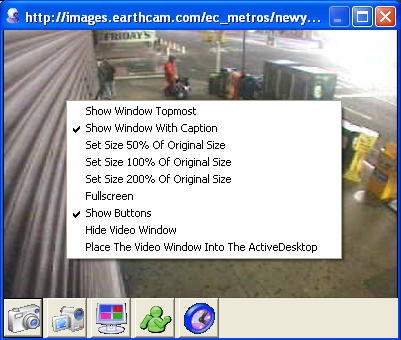
Show Window Topmost - shows this
window as a topmost window in front of all other windows or not
Show Window With Caption - shows or hides the window caption
Set Size 50% Of Original Size - the window size is changed
so that the video size is 50% of the original video size
Set Size 100% Of Original Size - the window size is changed
so that the video size has the original video size
Set Size 200% Of Original Size - the window size is changed
so that the video size is 200% of the original video size
Fullscreen - stretches the window to fullscreen
Show Buttons - shows or hides the buttons below the video
Hide Video Window - hides the video window. With
this function you hide the video window, all running functions
are still working. It is not the same, as if you close the video
window from the close button!
Place The Video Window Into The ActiveDesktop - if
the ActiveDesktop is enabled, the preview window is placed into
the ActiveDesktop. The window lays behind all program windows
and behind the desktop icons.
Context Menu -
Overview Window
A right mousebutton click
into the overview window opens the context menu.

Show Window Topmost - shows this window
as a topmost window in front of all other windows or not
Show Window With Caption - shows or hides the window caption
Fullscreen - stretches the window to fullscreen
Not Fullscreen - returns from fullscreen to the
former window size
1 Column - arranges the video windows in 1 column
2 Columns - arranges the video windows in 2 columns
1 Row - arranges the video windows in 1 row
2 Rows - arranges the video windows in 2 rows
Quadratic Order - arranges the video windows in a quadratic
order
Place The Video Window Into The ActiveDesktop - if
the ActiveDesktop is enabled, the overview window is placed into
the ActiveDesktop. The window lays behind all program windows
and behind the desktop icons.
Take A Picture - takes a picture
Start/Stop The Video Recording - starts/stops the video
recording
Start/Stop The Motion Detection - starts/stops the motion
detector of the camera
Start/Stop The Scheduler - starts/stops the scheduler of the
camera
Mouse Buttons / Function
Left Button - to move
the video window and the overview window, hold the left mousebutton down,
move the mouse and release the mousebutton at the desired position
Right Button - the right mousebutton opens the
context menus
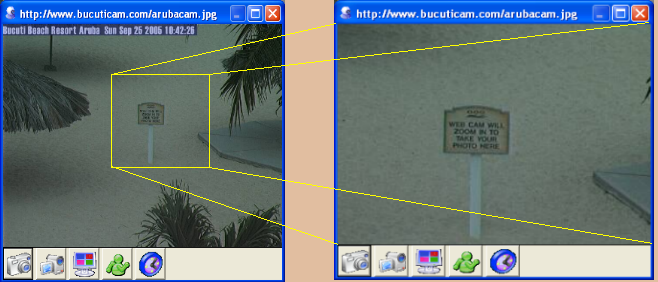
Middle Button - with the middle mousebutton you
could zoom into the camera video. This function is available in
the video window and the overview window. Hold the middle mousebutton
down (the cursor changes into a cross), move the mousebutton to
create a virtual rectangle and release the middle mousebutton to
zoom into this selected area!
Part
7 >> |