CamUniversal Manual
Action At Motion Detection

You could select one or several actions.
If you have selected several actions, they are all executed,
but in the order in which they appear in this dialog. So the
picture capturing is running before the FTP upload!
Bring The Video Window Into
The Foreground - the video
window of the current camera pops up into the foreground in
front of all other windows
Switch The Video Window To Fullscreen - the video window of the current camera resizes to fullscreen

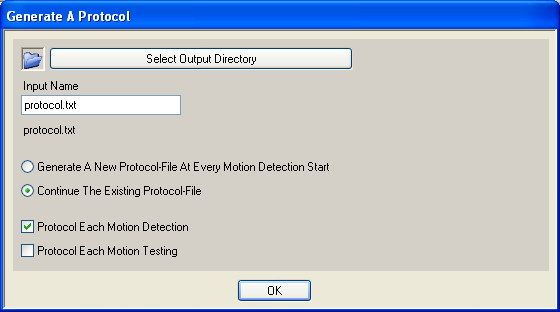
If this action is selected,
a protocol file is generated on your harddrive, like:
==================================================
WebCam: Logitech QuickCam Express
==================================================
Tested Nr. 0001: Picture Difference 00.00% -- 25.07.2004 14:16:18
Tested Nr. 0002: Picture Difference 15.00% -- 25.07.2004 14:16:19
Tested Nr. 0003: Picture Difference 13.91% -- 25.07.2004 14:16:20
Tested Nr. 0004: Picture Difference 14.98% -- 25.07.2004 14:16:21
Tested Nr. 0005: Picture Difference 14.21% -- 25.07.2004 14:16:22
Tested Nr. 0006: Picture Difference 19.18% -- 25.07.2004 14:16:23
Tested Nr. 0007: Picture Difference 58.46% -- 25.07.2004 14:16:24
Detected Nr. 0001: Picture Difference 58.46% -- 25.07.2004
14:16:24
Tested Nr. 0008: Picture Difference 50.27% -- 25.07.2004 14:16:25
Detected Nr. 0002: Picture Difference 50.27% -- 25.07.2004
14:16:25
Select Output
Directory - select
the target directory in which the protocol file is saved
Input Filename - insert the filename of the protocol file
Generate A New Protocol-File At
Every... - if selected
a new protocol file is generated at every motion detection
start. At the protocol filename a number ( _000, _001, etc.)
is appended.
Continue The Existing Protocol-File - if selected the existing protocol file is continued.
All protocols of all motion detector sessions are in one file.
Protocol Each Motion Detection - if selected each detection is recorded, like: Detected Nr. 0001: Picture Difference 58.46% -- 25.07.2004
14:16:24
Protocol Each Motion Testing - if selected each test for motion is recorded, like: Tested Nr. 0001: Picture Difference 00.00% -- 25.07.2004 14:16:18
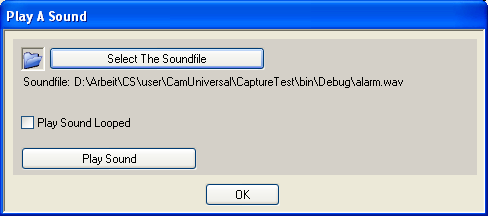
If this action is
selected, a sound is played.
Select The
Soundfile - select
the soundfile from your harddrive. It must be a soundfile
in the WAV format.
Play Sound Looped - if selected the sound is played in a loop
Play Sound - plays the selected sound for testing purposes!
If this action is
selected, pictures are captured. Look at the picture capture
dialog here.
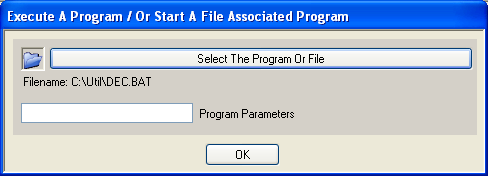
If this action is
selected, an external program is executed.
Execute
The Program Once - if
selected, the program is executed at the first motion detection.
At the following detections the program will not be executed.
This is useful if you want to start a program if there is
eventually a motion detection and want to run this program
from this moment for the whole detection session.
Execute The Program Every Detection - if selected, the program is executed at every motion
detection. This is useful if the external program should do
a short work and then stops itself.
Select The Program Or File - select the program which should be executed. You
could also select a file from which the file type has linked
to a default pogram under Windows. By example select a .TXT
file and the notepad is started.
Program Parameters - insert
the parameters for the program
If this action is
selected, videos are recorded. Look at the video record dialog here.
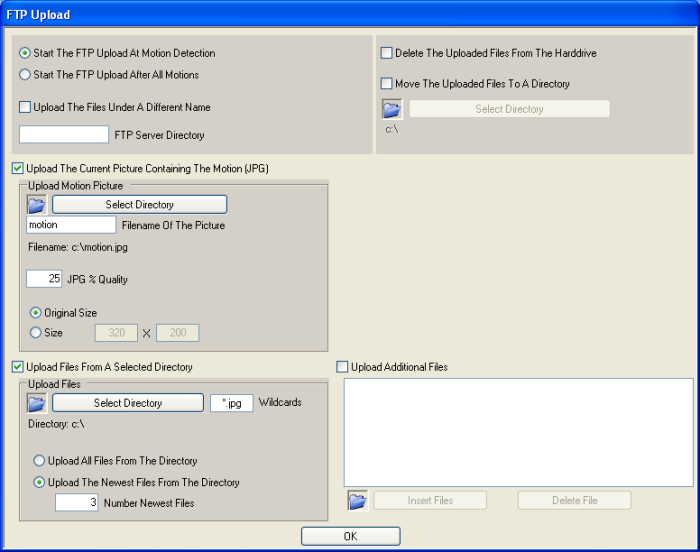
If this action is
selected, the FTP upload is executed.
Start The
FTP Upload At Motion Detection -
if selected, the FTP upload is executed at each motion
detection
Start The FTP Upload After All Motions - if selected, the program waits until no more motion
is detected and then starts the FTP upload. This is useful
if you want to collect pictures while there are several motions
and when all motions are gone, the program uploads all collected
pictures with one FTP upload to the FTP server.
Upload The Files Under A Different Name -
if selected, the program gives all files while they
are uploading a different name and following renames them
on the FTP server. This is important if you show a picture
on your website in this moment when the program uploads this
picture. If only a part of the picture is already uploaded
and the website is refreshed, an uncomplete picture is displayed.
To prevent this the picture gets his original name only if
it is complete uploaded.
FTP Server Directory - insert the remote FTP server directory to which the
files should be uploaded. "/motion" by example !
Delete The
Uploaded Files From The Harddrive - if selected, all uploaded files will be deleted after
the upload. Be careful with this option, because all uploaded
files from all selections (current motion picture, files from
a selected dir, additional files) are deleted.
Move The Uploaded Files To A Directory - if selected, all
uploaded files are moved into a selected directory. By example
you could collect all of your uploaded pictures in this directory.
Select Directory -
select the target directory
Upload The Current Picture Containing
The Motion - if selected,
the current picture which contains the motion is captured and
attached to the list of files which are uploaded
Select Directory -
selected the direcotry in which the picture should
be captured
Filename Of The Picture -
input the picturefilename. The picture is always in
JPG format. Further pictures could be generated under the
"Capture Picture" option.
JPG % Quality - insert the quality of the JPG picture from 1 - 100%
Original Size - if selected, the picture is captured in the size
of the camera video
Size -
if selected, the picture is captured in a user defined
size
Upload Files From A Selected Directory - if selected, files from a selectable directory are
uploaded
Select Directory -
select the files directory
Wildcards -
select the used wildcards (*.* for all files, *.jpg
for all JPG pictures etc.)
Upload All Files From The Directory - if selected, all
files from the directory which fits the wildcards are uploaded
Upload The Newest Files From The
Directory - if selected,
only the newest files from the directory which fits the wildcards
are uploaded
Number Newest Files -
insert the number of newest files
Upload Additional Files - if selected, additional selectable files are uploaded
Insert Files - select the files. The files are inserted into the
listview.
Delete File - the selected file is deleted from the listview and
not uploaded

If this action is
selected, the email sending is executed.
Start The
Email Sending At Motion Detection -
if selected, an email is sended at each motion detection
Start The Email Sending After All
Motions - if selected,
the program waits until no more motion is detected and then
sends an email. This is useful if you want to collect pictures
while there are several motions and when all motions are gone,
the program sends the email with all collected pictures attached.
Email Subject Text -
insert the subject text of the email
Email Body Text -
insert the body text of the email
Delete
The Sended Files From The Harddrive - if selected, all sended files will be deleted after
the eamil is sended. Be careful with this option, because
all sended files from all selections (current motion picture,
files from a selected dir, additional files) are deleted.
Move The Sended Files To A Directory - if selected, all
sended files are moved into a selected directory. By example
you could collect all of your sended pictures in this directory.
Select Directory -
select the target directory
Attach The Current Picture Containing
The Motion - if selected,
the current picture which contains the motion is captured and
attached to the list of files which are sended
Select Directory -
selected the direcotry in which the picture should
be captured
Filename Of The Picture -
input the picturefilename. The picture is always in
JPG format. Further pictures could be generated under the
"Capture Picture" option.
JPG % Quality - insert the quality of the JPG picture from 1 - 100%
Original Size - if selected, the picture is captured in the size
of the camera video
Size -
if selected, the picture is captured in a user defined
size
Attach Files From A Selected Directory - if selected, files from a selectable directory are
attached to the email
Select Directory -
select the files directory
Wildcards -
select the used wildcards (*.* for all files, *.jpg
for all JPG pictures etc.)
Attach All Files From The Directory - if selected, all
files from the directory which fits the wildcards are attached
to the email
Attach The Newest Files From The
Directory - if selected,
only the newest files from the directory which fits the wildcards
are attached
Number Newest Files -
insert the number of newest files
Attach Additional Files - if selected, additional selectable files are attached
to the email
Insert Files - select the files. The files are inserted into the
listview and attached to the email.
Delete File - the selected file is deleted from the listview and
not attached
to the email
|

