CamUniversal Manual
Part 2: Application Window
Application Window
ButtonBar Buttons
Camera-Motion-Detector
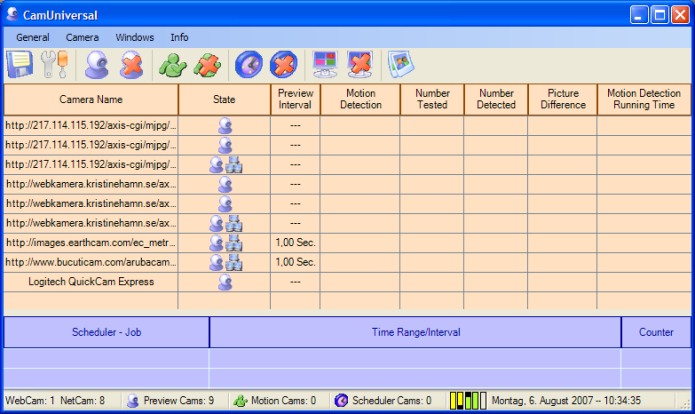
Listview Columns

Camera Name |
the camera name
- for Webcams this is the name which comes from the
device driver
- for Netcams this is the camera picture (or streaming)
URL
( the Camera Name could be changed into a user defined
name ) |
State |
the camera state is
shown by small icons:
 preview is active
 the motion detector is running
 the scheduler is running
 the video recording is active
 the FTP client is running
 the Email client is running
 the camera is sending the camera picture to a remote
video server
the camera is sending the camera picture to a remote
video server
|
Preview Intervall |
the picture receiving
interval ( for all direct connected video devices
with a live video stream (Webcam via USB) there is
shown '---' ) |
Motion Detection Intervall |
the motion detecting interval |
Number Tested |
how often the program has tested for motion
since motion detection start |
Number Detected |
how often the program has detected a motion
since motion detection start |
Picture Difference |
the last picture difference |
Motion Detection Running
Time |
the motion detection running time, ( d
hh:mm:ss ) |
Scheduler-Listview Columns

Scheduler - Job |
the function which should be executed |
Time Range/Interval |
the point in time, time interval, time
range at which the function is executed |
Counter |
how often the function was executed |
The scheduler listview shows
the settings from the selected camera!
Status Bar
The status bar shows the available cameras
and the mode in which they are running, the current time/date
and the network activity.
Network Activity 
The
columns shows the activity of the video network server/client
and the webserver.
The yellow columns shows the activity of the network server,
the green columns of the network client and the blue-green
column of the webserver. Down running black dots signals incoming
datas, up running dots signals outgoing datas.
Part
3 >> |




