CamPermanent Manual
Part 3: Program Settings
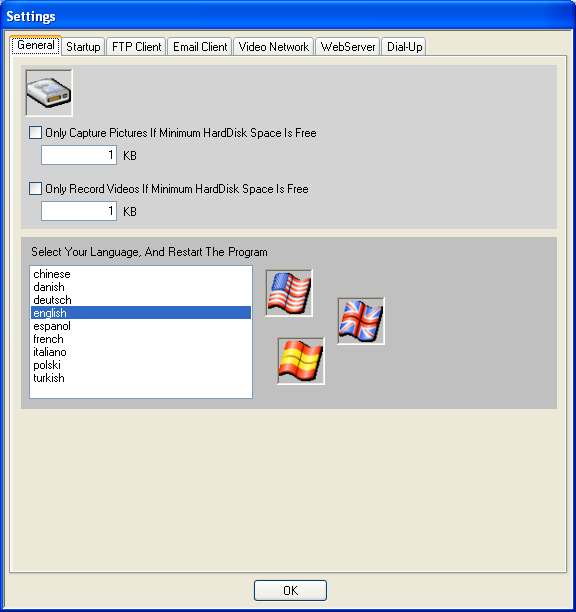
Only Capture Pictures ... - if this option is
selected, pictures are only captured to harddisk if a minimum of x
KB free harddisk space is available ( x = the amount of free space
in KB, input 1024 for 1 MB )
Only Record Videos ... - if this option is selected,
videos are only recorded to harddisk if a minimum of x
KB free harddisk space is available ( x = the amount of
free space in KB )
Select Your Language, And Restart The Program -
select the program language. This selection becomes active
after a restart.
Startup
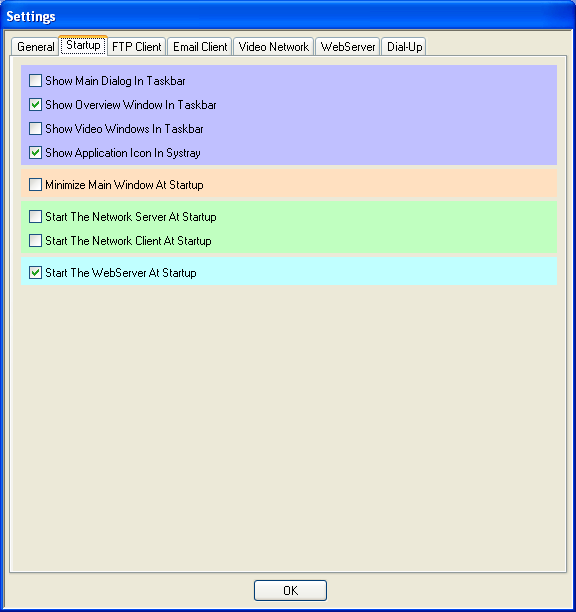
Show Main Dialog In Taskbar - if selected, a
button for the application main window is shown in the taskbar
Show Overview Window In Taskbar - if selected, a
button for the overview window is shown in the taskbar
(the overview or collection window shows all video windows
from all cameras collected within one window)
Show Video Windows In Taskbar - if selected, for
each video window a button is shown in the taskbar
Show Application Icon In Systray - if selected,
an icon for the application is shown in the systray. From
the context menu of this icon the application could be
closed. A double click on this icon shows the application
main dialog!
Minimize Main Window At Startup - if selected, the
main application window is minimized at startup
Start The Network Server At Startup - if selected,
the internal network server is started at startup. Adjust
all needed network-server/-client settings before here !
Start The Network Client At Startup - if selected,
the internal network client is started at startup. Adjust
all needed network-server/-client settings before here !
Start The WebServer At Startup - if selected,
the internal webserver is started at startup.
 If
you have not selected to show the main dialog window in
the taskbar and you have not selected to show the application
icon in the systray, then you have no possibility to handle
the application window after you have minimized it. If
you have not selected to show the main dialog window in
the taskbar and you have not selected to show the application
icon in the systray, then you have no possibility to handle
the application window after you have minimized it.
 If
you ever want to reset all program settings, then delete
the file SETTINGS.DAT! If
you ever want to reset all program settings, then delete
the file SETTINGS.DAT!
Email Client
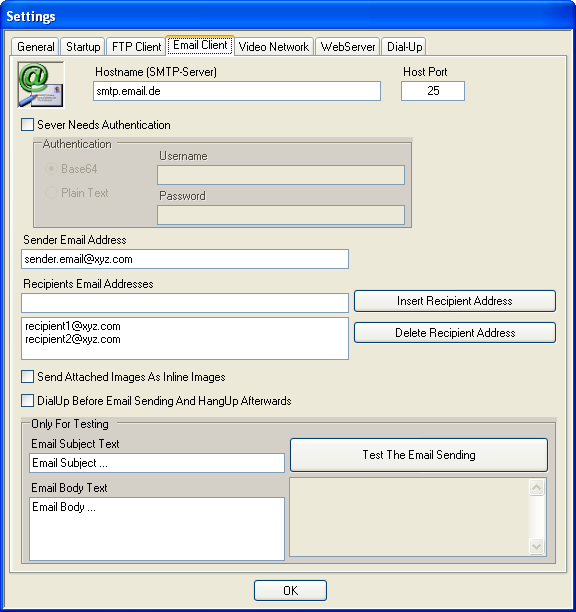
Hostname (SMTP-Server) - insert the name of your
email SMTP server. Take a look into your standard email program for
the needed settings.
Host Port - port number of the SMTP server.
Server Needs Authentication - select if the SMTP
server needs an authentication.
Base64 - select if the server needs the username
and password in the base64 format
Plain Text - select if the server needs the username
and password as plain text
Username - the username for the authentication
Password - the password for the authentication
Sender Email Address - insert the email address
which should be visible as sender address
Recipients Email Addresses - insert one or several
email addresse for the recipients
Send Attached Images As Inline Images - select
if you want to include all attached image direct into the email text.
In this case the email is sended in HTML format instead of text format.
Your email client must be capable of displaying emails in HTML format!
DialUp Before Email Sending And HangUp Afterwards -
select if you don't use a permanent network connection and want to
dialup before the email is sended and hangup afterwards. Select an
existing dialup connection here.
Test
the email sending. For test purposes please make all settings
and press the "Test The Email Sending" button. So you
could test if the email client works correct with your settings,
before it will be used later in the program.
FTP Client
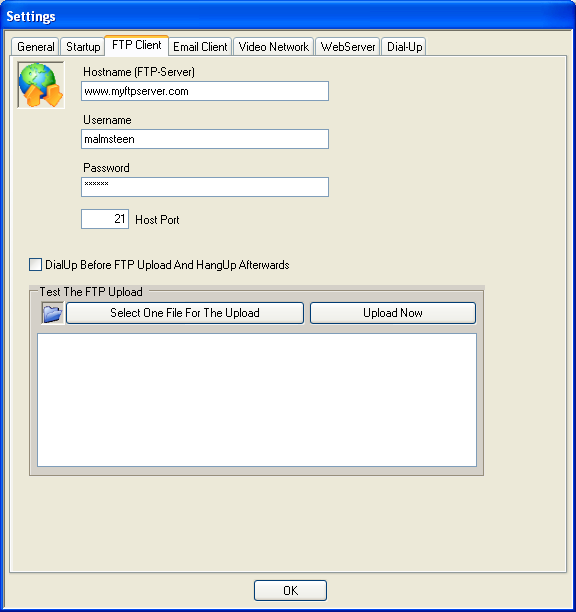
Hostname (FTP-Server) - insert the name of your
FTP server
Username - the username for the FTP connection
Password - the password for the FTP connection
Host Port - port number of the FTP server
DialUp Before FTP Upload And HangUp Afterwards -
select if you don't use a permanent network connection
and want to dialup before the FTP upload is started and
hangup afterwards. Select an existing dialup connection here.
Test
The FTP Upload. For test purposes please make all settings, then
select a file which should be uploaded with the "Select One
File For The Upload" button. Press the "Upload Now"
button and the test upload is started. In the editbox below the buttons
the program prints status informations while uploading the selected
file. So you can verify if the FTP client works well and could be used
later in the program.
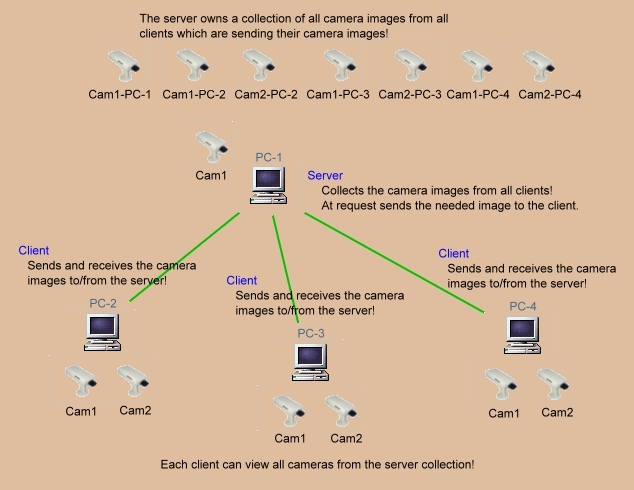
 The integrated
video network is used to transfer the camera picture from all
video client PCs to the video server PC.
You have to run at least two instances of CamLAN (CamUniversal
or Campermanent) on two PCs to use the video network. One PC works
as a video server and collects the video picture from all connected
clients. All cameras running at the client PCs could send their
video picture to the server PC. All instances of CamLAN (CamUniversal
or CamPermanent) are able to connect to the server instance and
receive the video picture from all cameras which have send their
video picture to the server. These cameras are called RemoteCams.
All running cameras, no matter if they are WebCams, NetCams or
RemoteCams can send their picture to the server PC and become through
this way a RemoteCam! The integrated
video network is used to transfer the camera picture from all
video client PCs to the video server PC.
You have to run at least two instances of CamLAN (CamUniversal
or Campermanent) on two PCs to use the video network. One PC works
as a video server and collects the video picture from all connected
clients. All cameras running at the client PCs could send their
video picture to the server PC. All instances of CamLAN (CamUniversal
or CamPermanent) are able to connect to the server instance and
receive the video picture from all cameras which have send their
video picture to the server. These cameras are called RemoteCams.
All running cameras, no matter if they are WebCams, NetCams or
RemoteCams can send their picture to the server PC and become through
this way a RemoteCam!
CamLAN
(CamPermanent and CamUniversal) could run the network server
part and the network client part together in one instance.
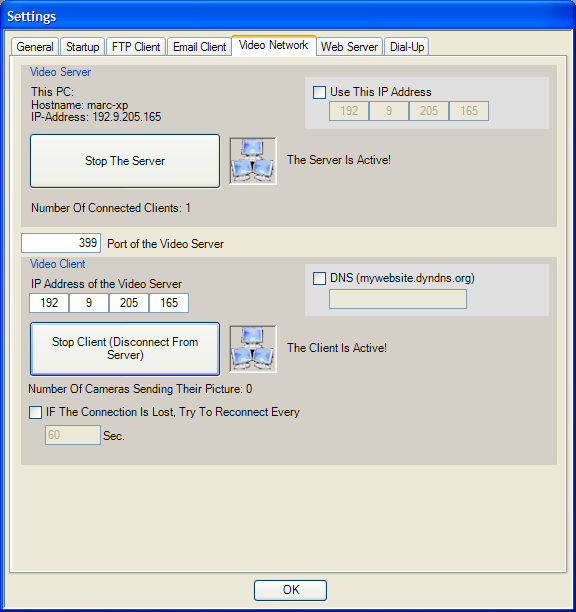
This PC:
Hostname: - the hostname of the PC where CamPermanent
is running
IP-Address - the IP-Address of the PC where CamPermanent
is running
Use This IP-Address - CamPermanent determines
the IP address of your PC and uses this IP address. In case of using
several network cards in your PC you want to use a different one. Insert
the IP address of your desired card.
Start This PC As Server- press this button to
start the integrated video sever
Number Of Connect Clients - the number of PCs which
are connected to this PC and running the integrated video
client
Number Of Cameras Sending Their Picture - the number
of running cameras which are sending their picture to a
connected client PC. To enable or disable the sending of
the camera picture, goto the camera settings.
Port of the Video Server - the port of the video
server. This must be the same port on the network server
and the network client.
IP Address of the Video Server- input the IP address
of the video server. The IP address is shown above.
Start This PC As Client - press this button to start
the client functionality. The client tries to connect
to the video server from which you have instered the
IP address. It's important, that the video server is
already running.
WebServer
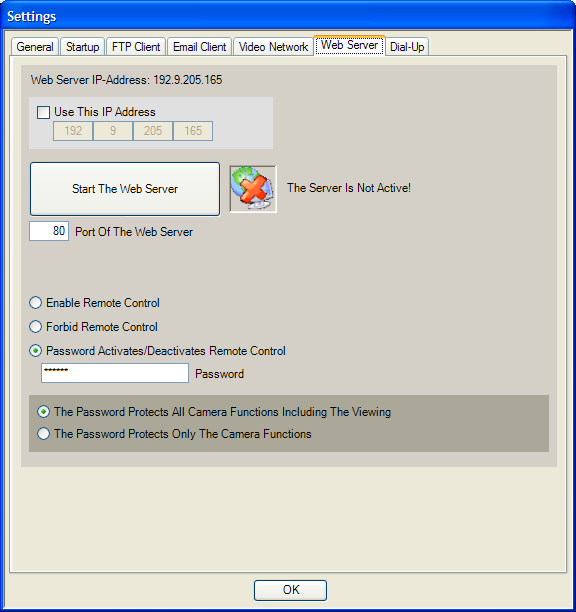
Use This IP-Address - CamPermanent determines
the IP address of your PC and uses this IP address. In case of using
several network cards in your PC you want to use a different one. Insert
the IP address of your desired card.
Start The WebServer- press this button
to start the integrated websever.
Port of the WebServer- the port of the webserver.
The IP address and the port of the webserver must be inserted
into the HTTP request to get the camera video.
It is always possible to demand a video picture from each camera. Additional
to the support of sending video pictures, the webser supports commands,
which controls each camera (possible
commands).
To enable or disable these commands, the following setting is used.
Remote Control Is Possible - if selected, the
webserver accepts commands
Forbid Remote Control - if selected,
the webserver don't accepts commands
Password Activates/Deactivates Remote Control - if
selected, a password is used to enable or disable the commands
The Password Protects All Camera Functions
Including The Viewing - if
selected, the camera picture viewing and the camera functions are protected
by password
The Password Protects Only The Camera Functions - if
selected, the camera picture viewing is always possible, the password
protects only the camera functions
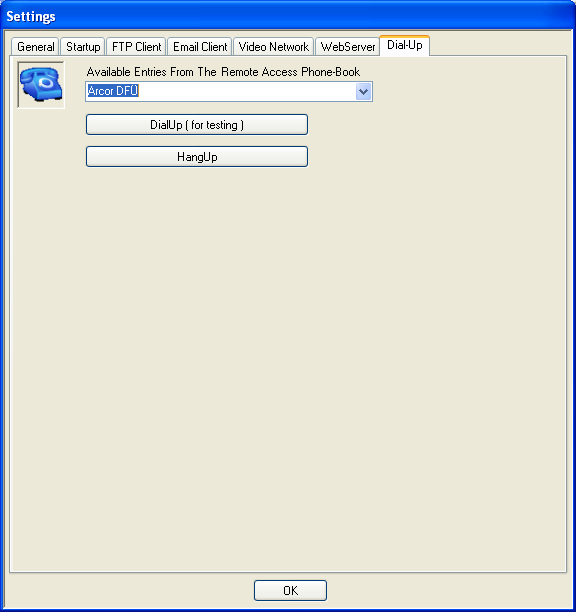
Available Entries From ...- select the remote
data transmission from the remote access phone-book, which should be
used for the dial up. All available remote data transmissions are shown.
If you need an additional one, you have to create this new under Windows!
Part
4 >> |